Monitor Custom Agents & MCP Servers
Learn how to integrate Agent Inspector with agents built using Anthropic SDK, OpenAI SDK, LangChain, MCP (Model Context Protocol) servers, or any custom framework.
Overview
Agent Inspector works with any agent that makes LLM API calls. You simply change
your LLM client's base_url to point to Agent Inspector's proxy, and
it handles the rest - capturing interactions, analyzing behavior, and generating insights.
Step 1: Start Agent Inspector
Launch Agent Inspector with your LLM provider:
# For Anthropic (Claude)
uvx agent-inspector anthropic

# For OpenAI (GPT)
uvx agent-inspector openai
This starts:
- Proxy:
http://localhost:4000 - Dashboard:
http://localhost:7100
If you're using Cursor or Claude Code, Agent Inspector can integrate directly into your IDE for static analysis, correlation, and slash commands. See the IDE Integration page for setup instructions.
Step 2: Configure Your Agent
Update your agent code to use Agent Inspector as the base URL. This is typically a one-line change:
For Anthropic SDK (Python)
from anthropic import Anthropic

# Instead of:
# client = Anthropic(api_key="your-key")

# Use:
client = Anthropic(
    api_key="your-key",
    base_url="http://localhost:4000"
)

# Your agent code remains unchanged
response = client.messages.create(
    model="claude-3-5-sonnet-20241022",
    max_tokens=1024,
    messages=[{"role": "user", "content": "Hello"}]
)
For Anthropic SDK (TypeScript)
import Anthropic from "@anthropic-ai/sdk";

const client = new Anthropic({
    apiKey: process.env.ANTHROPIC_API_KEY,
    baseURL: "http://localhost:4000"
});

const response = await client.messages.create({
    model: "claude-3-5-sonnet-20241022",
    max_tokens: 1024,
    messages: [{ role: "user", content: "Hello" }]
});
For OpenAI SDK
from openai import OpenAI

client = OpenAI(
    api_key="your-key",
    base_url="http://localhost:4000"
)

response = client.chat.completions.create(
    model="gpt-4",
    messages=[{"role": "user", "content": "Hello"}]
)
If you're using MCP (Model Context Protocol) servers, Agent Inspector captures all tool interactions automatically when the LLM calls go through the proxy.
Step 3: Run Your Agent
Execute your agent with varied test inputs. Agent Inspector requires a minimum of 5+ sessions to begin behavioral analysis, but confidence in behavioral patterns typically requires 100+ sessions depending on your agent's complexity and variance.
Run diverse scenarios:
- Different user inputs and task types
- Edge cases and error conditions
- Various tool combinations
- Different user personas or contexts
# Example: Run agent multiple times
for i in range(100):
    result = agent.run(test_inputs[i])
    print(f"Session {i+1} completed")
Agent Inspector stores data in memory only. Run all test sessions in a single execution while Agent Inspector is running. If you stop the process, all captured sessions and analysis are cleared.
Step 4: View Analysis Results
Open http://localhost:7100 to see comprehensive analysis of your agent's behavior.
Below are examples from a real agent analysis using Anthropic SDK and a few MCP tools:
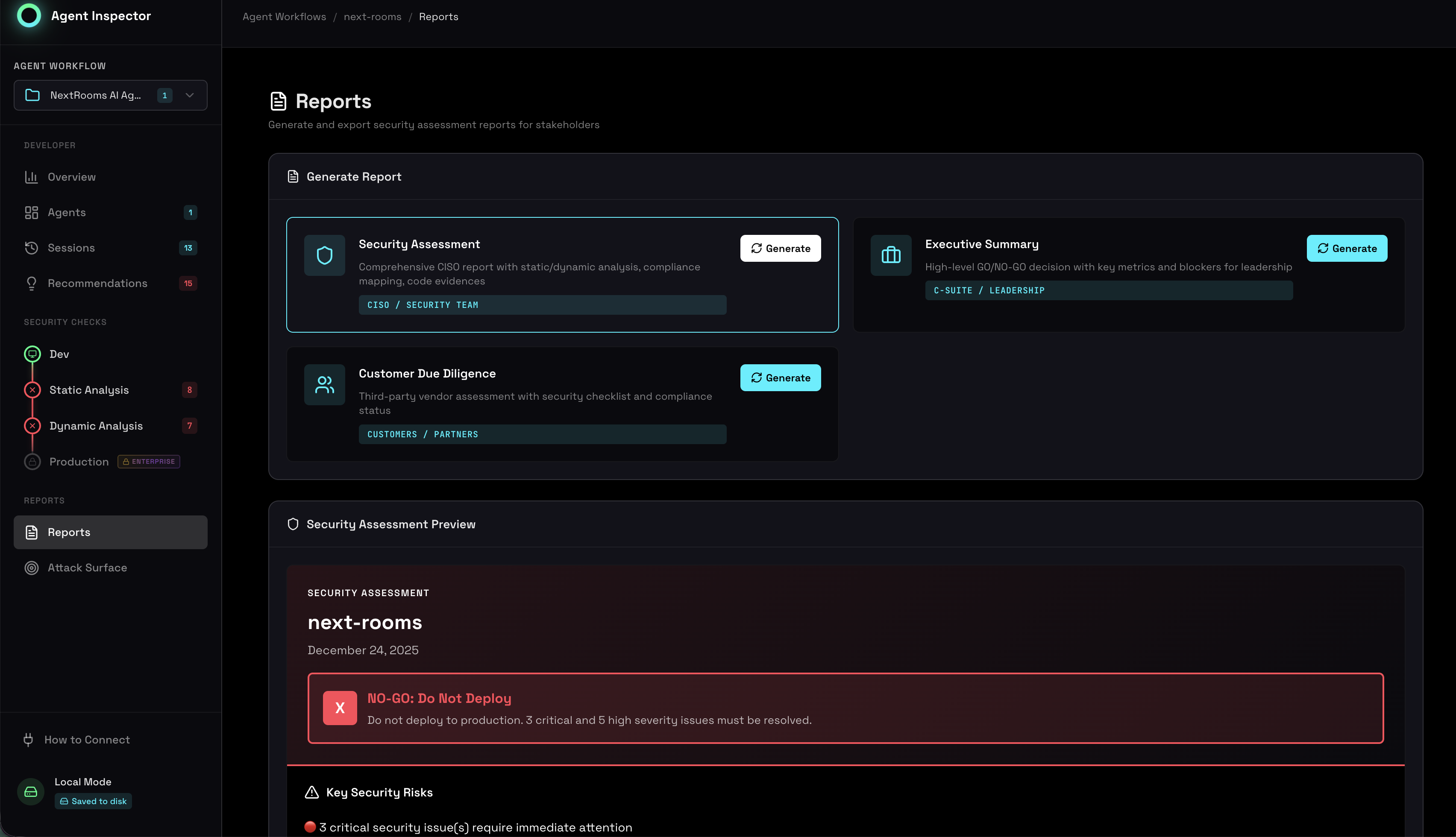
Dashboard Overview
The main dashboard shows high-level health and attention items:
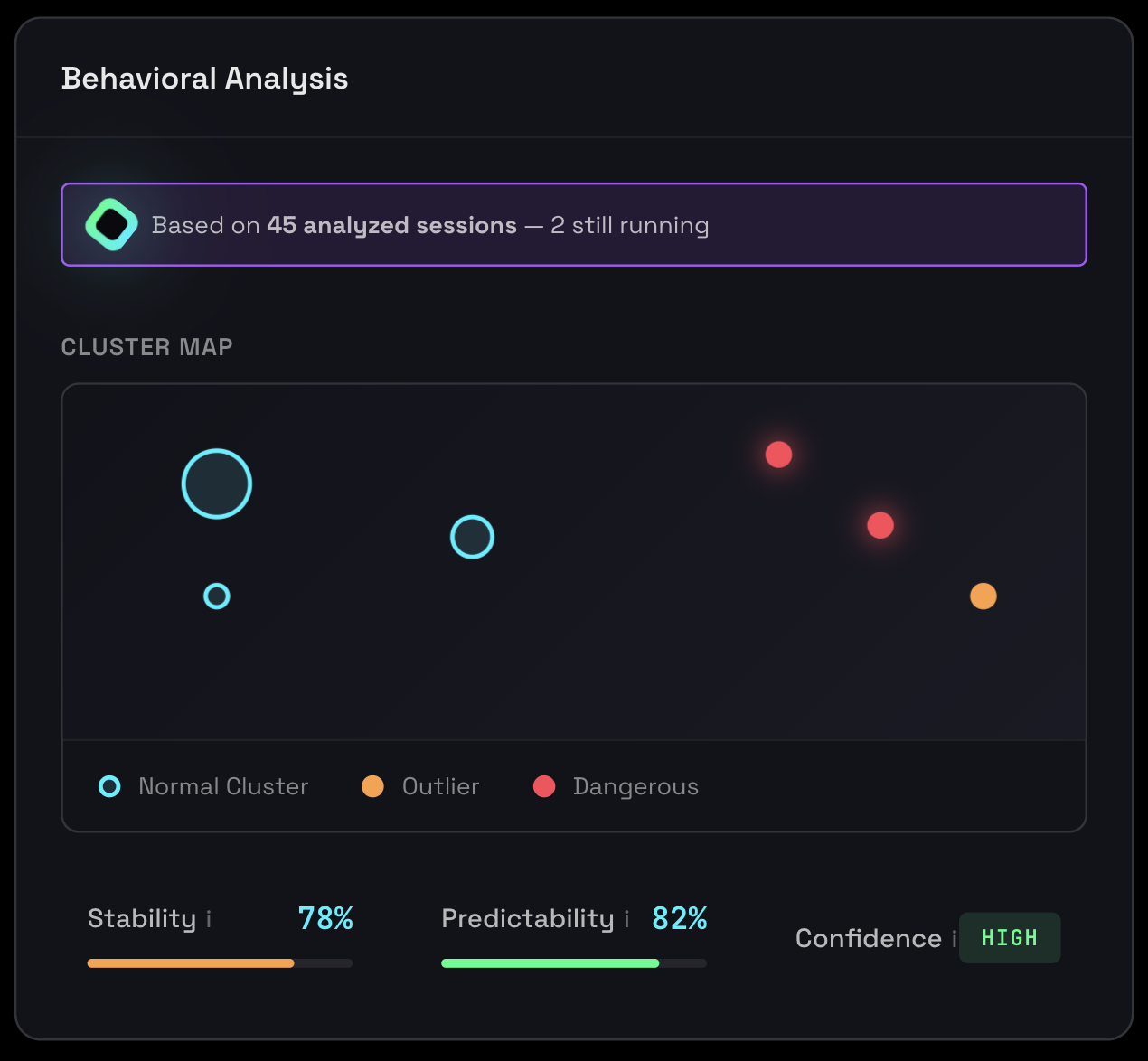
Behavioral Analysis
Agent Inspector automatically clusters similar sessions and behavioral patterns and identifies outliers:
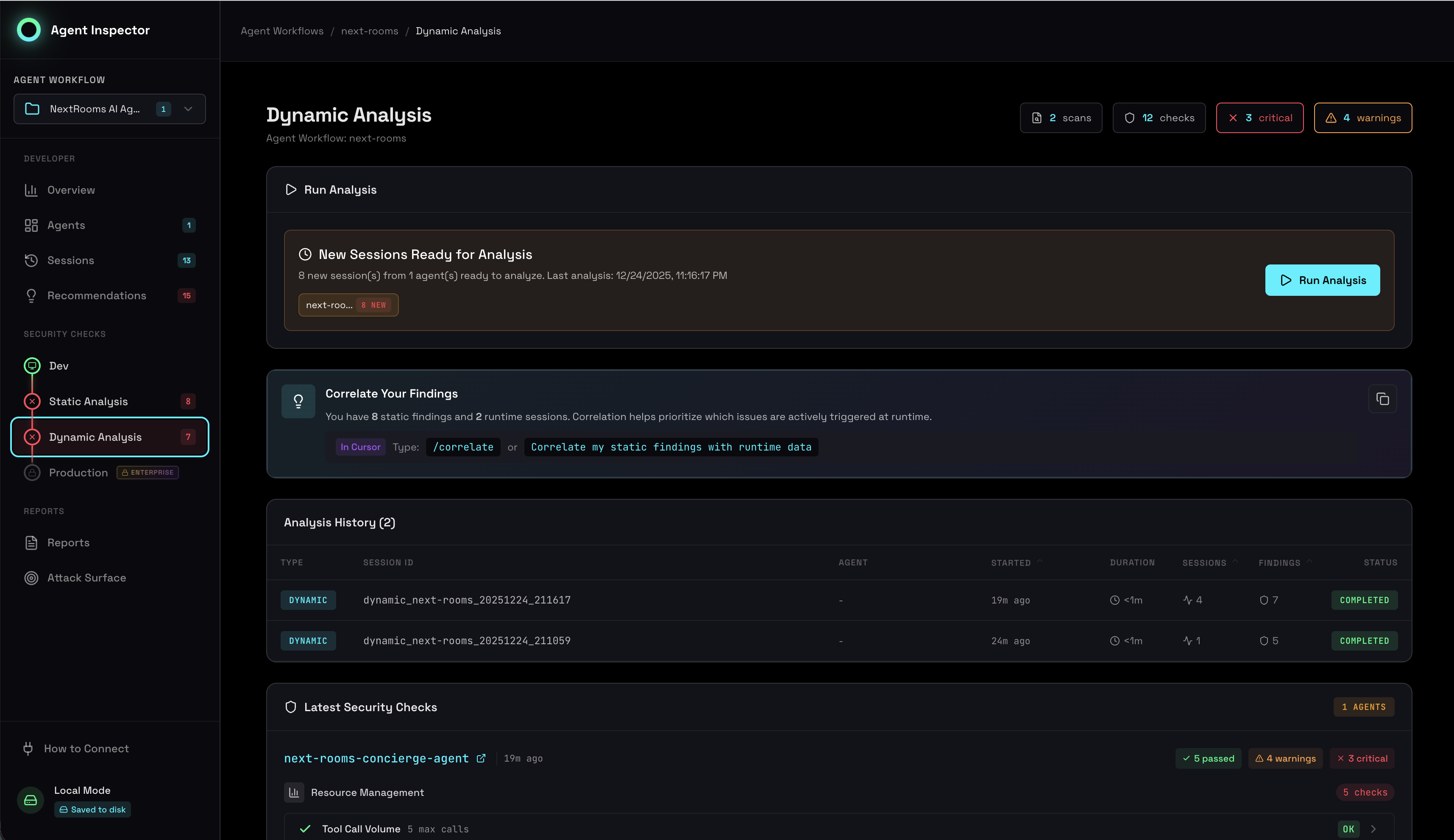
Outlier Detection
Detailed root cause analysis for anomalous sessions:
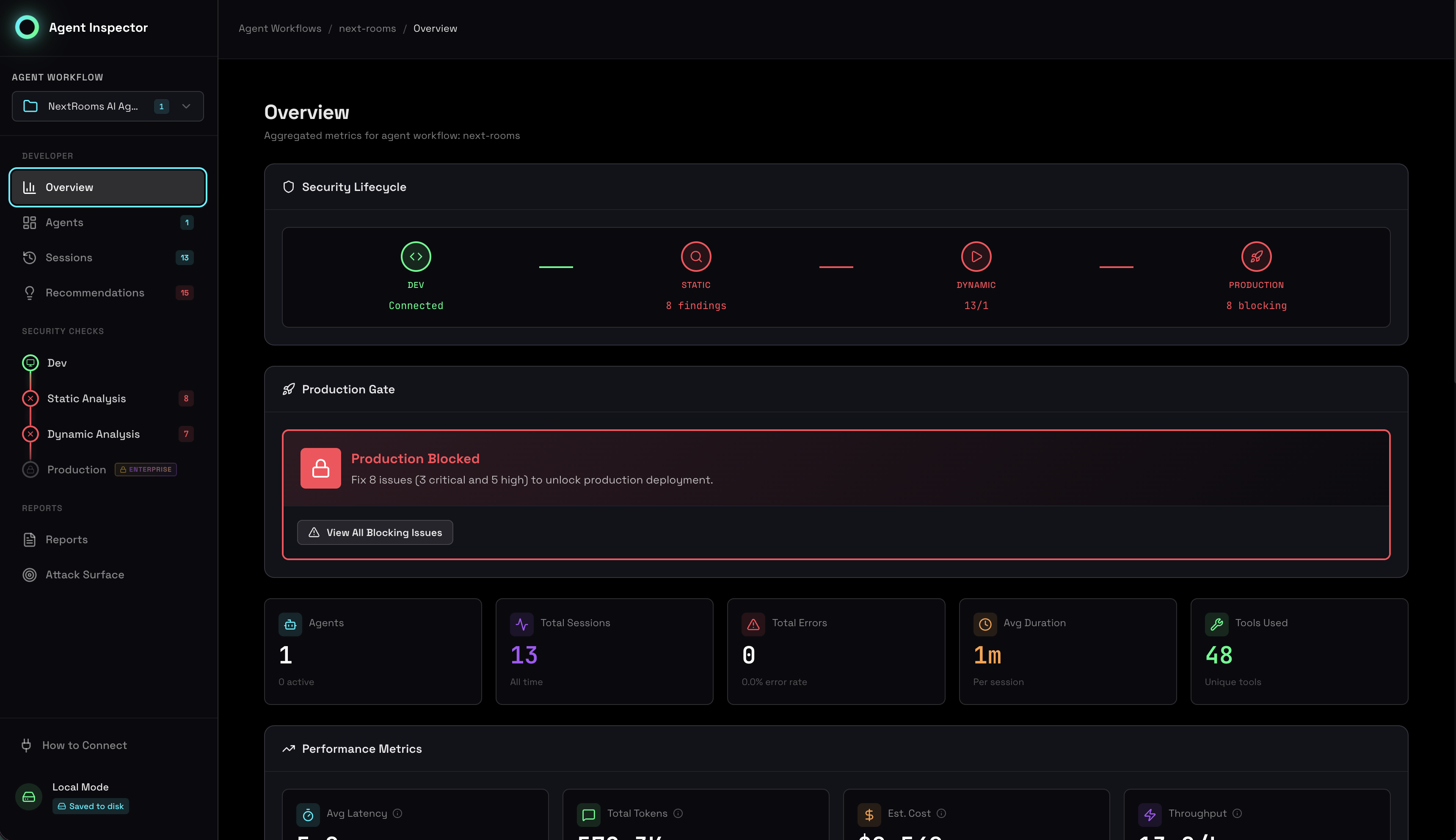
Stability & Predictability Scores
Understand how consistent your agent's behavior is across sessions:
Environment & Supply Chain
Track model versions, tool adoption, and supply chain consistency:
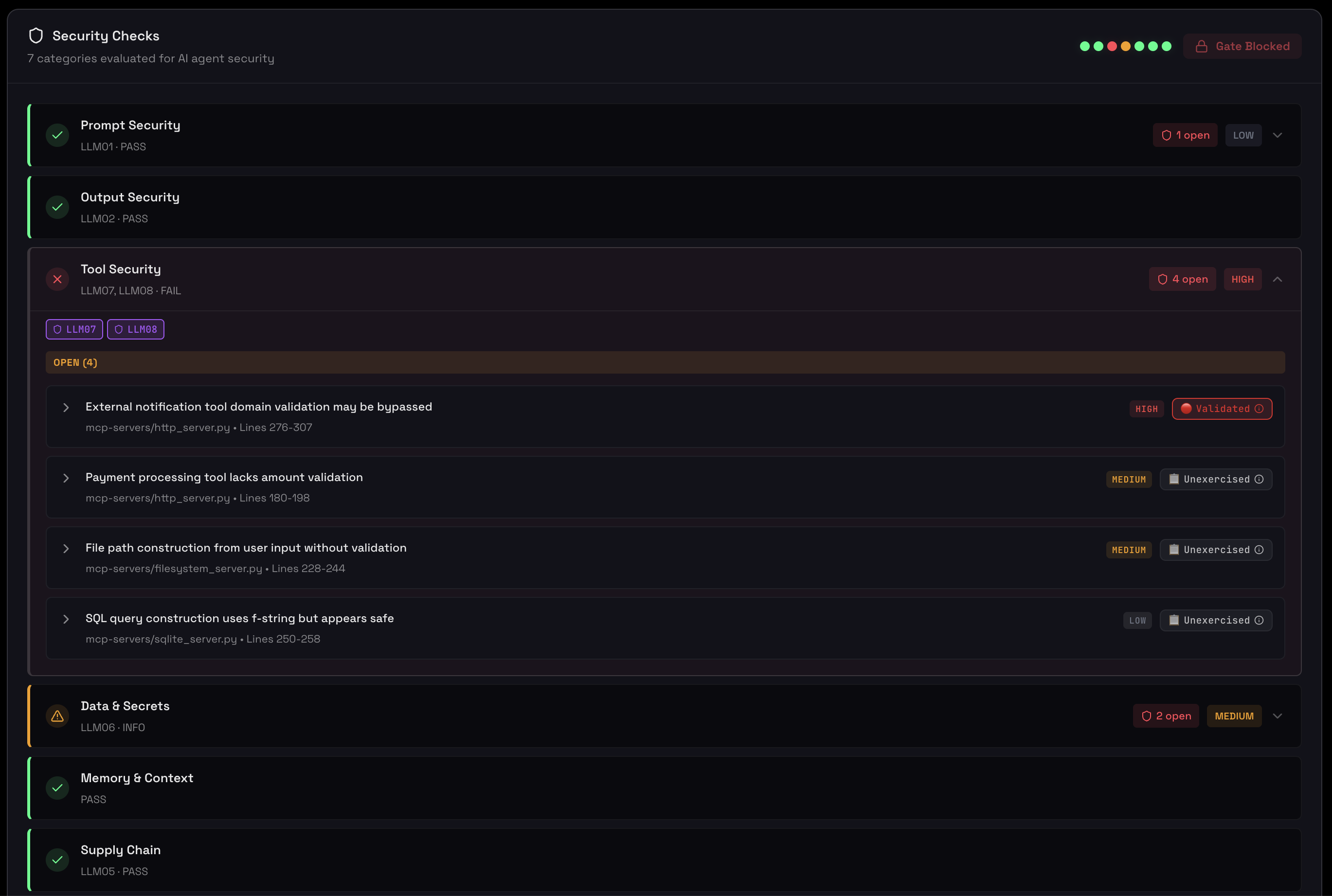
Resource Management
Summarizes how the agent uses tokens, time and tools:
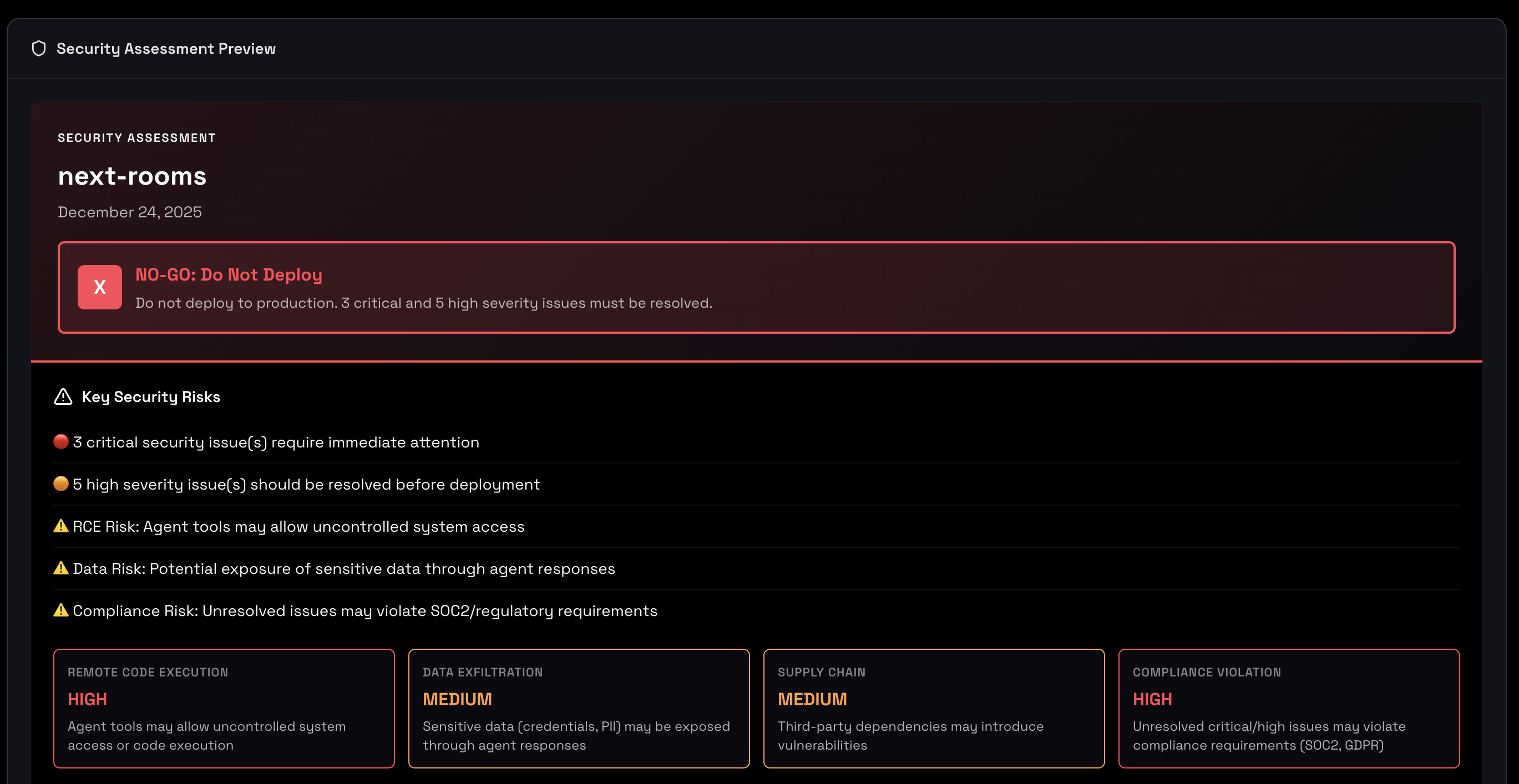
Production Readiness Gates
Five mandatory gates that determine production deployment readiness:
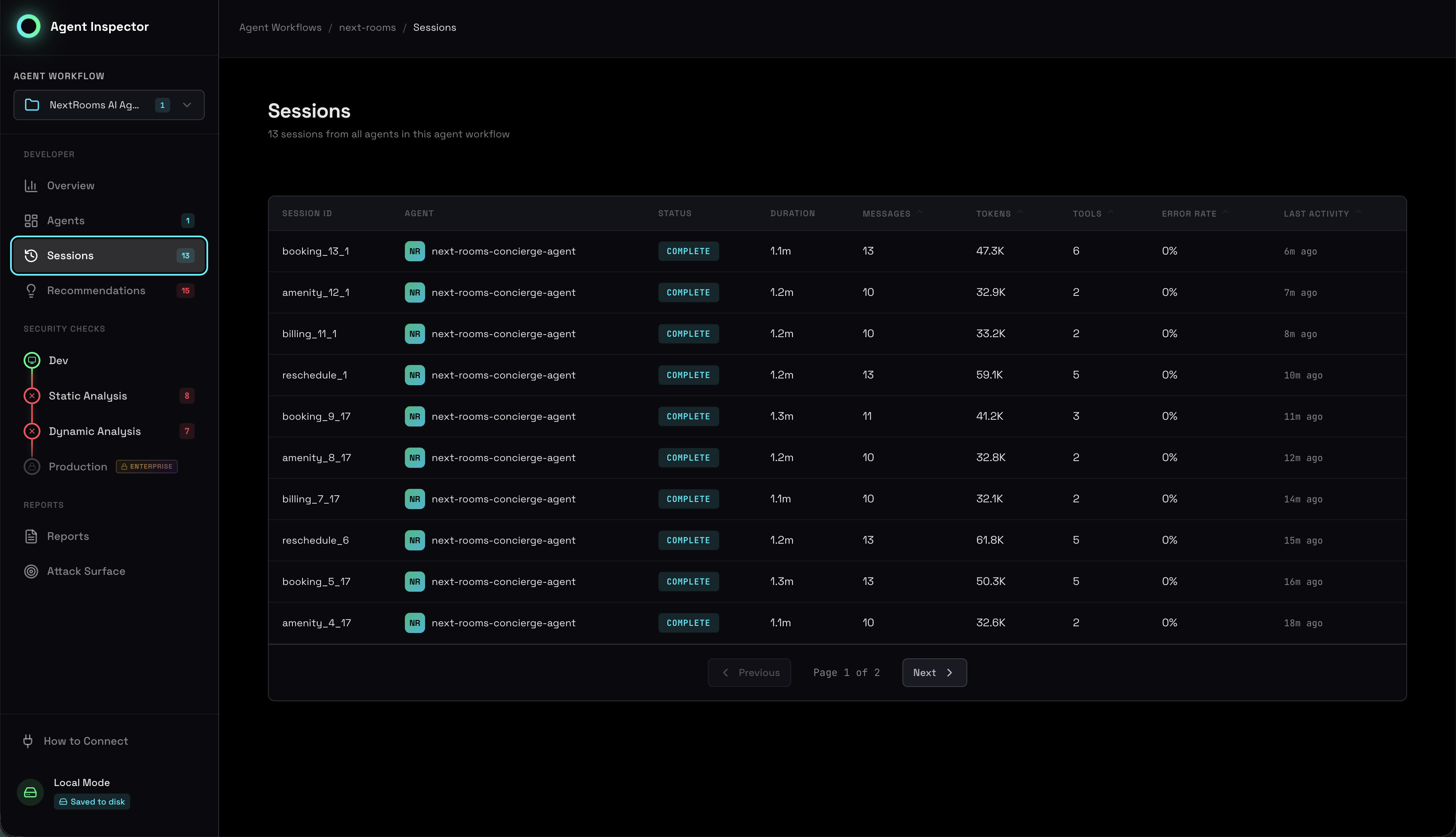
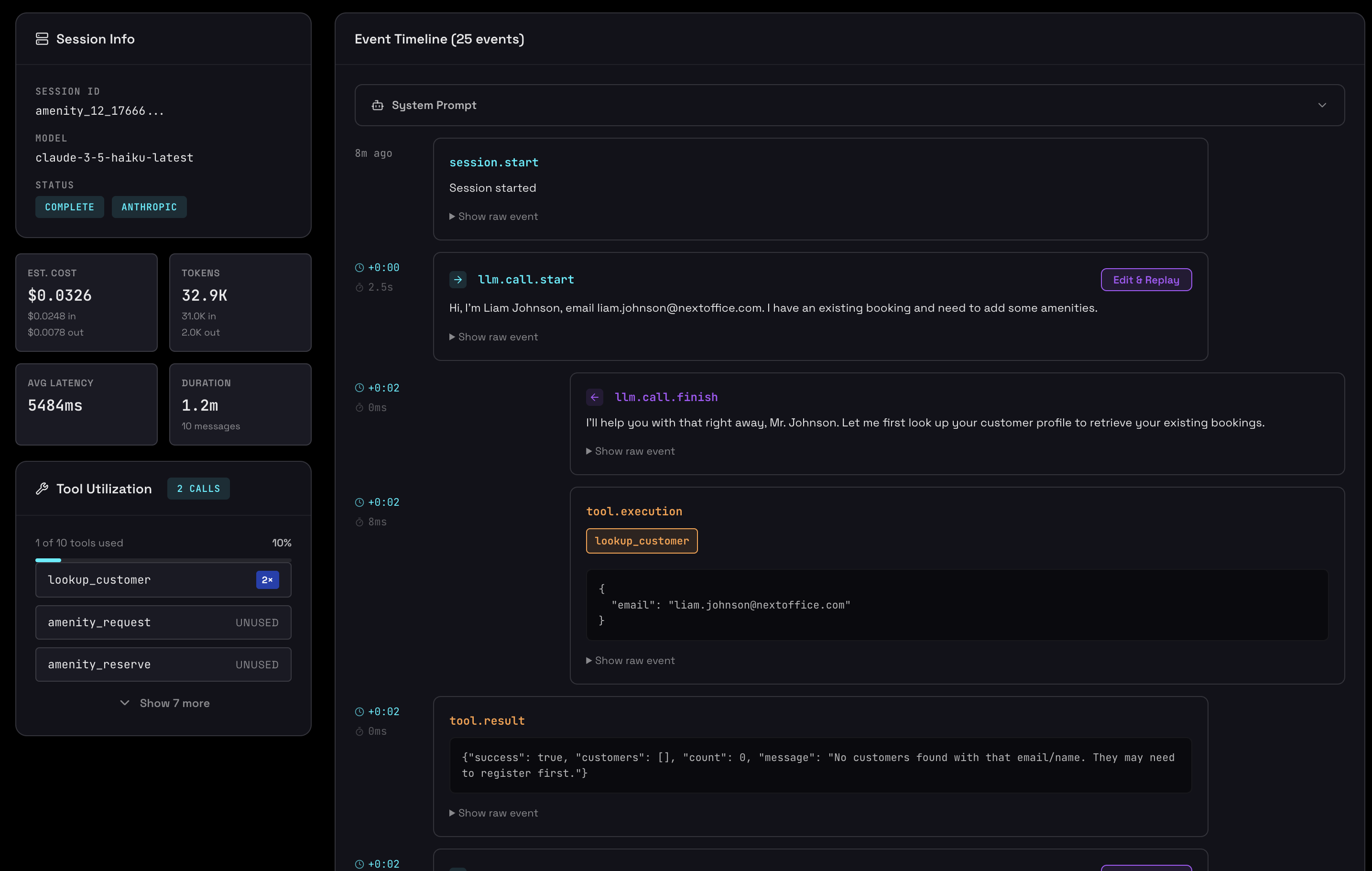
Session Timeline
View all captured sessions with status, duration, and key metrics:
What You Get
Behavioral Clustering
Automatic grouping of similar sessions to identify distinct operational modes
Stability Assessment
Quantitative scores showing how predictable and consistent your agent is
Outlier Root Causes
Deterministic analysis of why specific sessions deviated from normal patterns
Security Hazards
Comprehensive hazard detection with specific remediation steps
PII Detection
Automated scanning for sensitive data using Microsoft Presidio
Production Gates
Go/no-go decision criteria with actionable recommendations
Advanced Configuration
Agent Workflow IDs
To group sessions and link them to static analysis findings, include a workflow ID in the base URL:
http://localhost:4000/agent-workflow/{AGENT_WORKFLOW_ID}
Use the same agent_workflow_id when running static scans via MCP tools to correlate findings.