Monitor n8n Workflows with Agent Inspector
Learn how to connect Agent Inspector to your n8n workflows and analyze LLM behavior, tool usage, and security in real-time.
What You'll Set Up
Agent Inspector acts as a proxy between n8n's LLM nodes and Anthropic/OpenAI APIs. You'll configure n8n to route LLM calls through Agent Inspector, which captures and analyzes every interaction without modifying your workflows.
Step 1: Start Agent Inspector
Launch Agent Inspector with the Anthropic provider (or OpenAI if you're using GPT models):
# For Anthropic
uvx agent-inspector anthropic

# For OpenAI
uvx agent-inspector openai
This starts two services:
- Proxy:
http://localhost:4000- Routes LLM calls - Dashboard:
http://localhost:7100- View analysis results
Step 2: Configure n8n Credentials
Configure your n8n AI nodes to route through Agent Inspector. This can be done through credential settings for Anthropic/OpenAI nodes, or via HTTP Request nodes for custom setups.
Option A: Using AI Node Credentials (Anthropic/OpenAI)
The easiest way is to update your AI node credentials in n8n:
- Go to Settings → Credentials in n8n
- Select your Anthropic API or OpenAI credential
- Configure the base URL:
- API Key: Your real Anthropic/OpenAI API key
- Base URL (Anthropic):
http://127.0.0.1:4000 - Base URL (OpenAI):
http://127.0.0.1:4000
- Click Test to verify the connection
- Save the credential
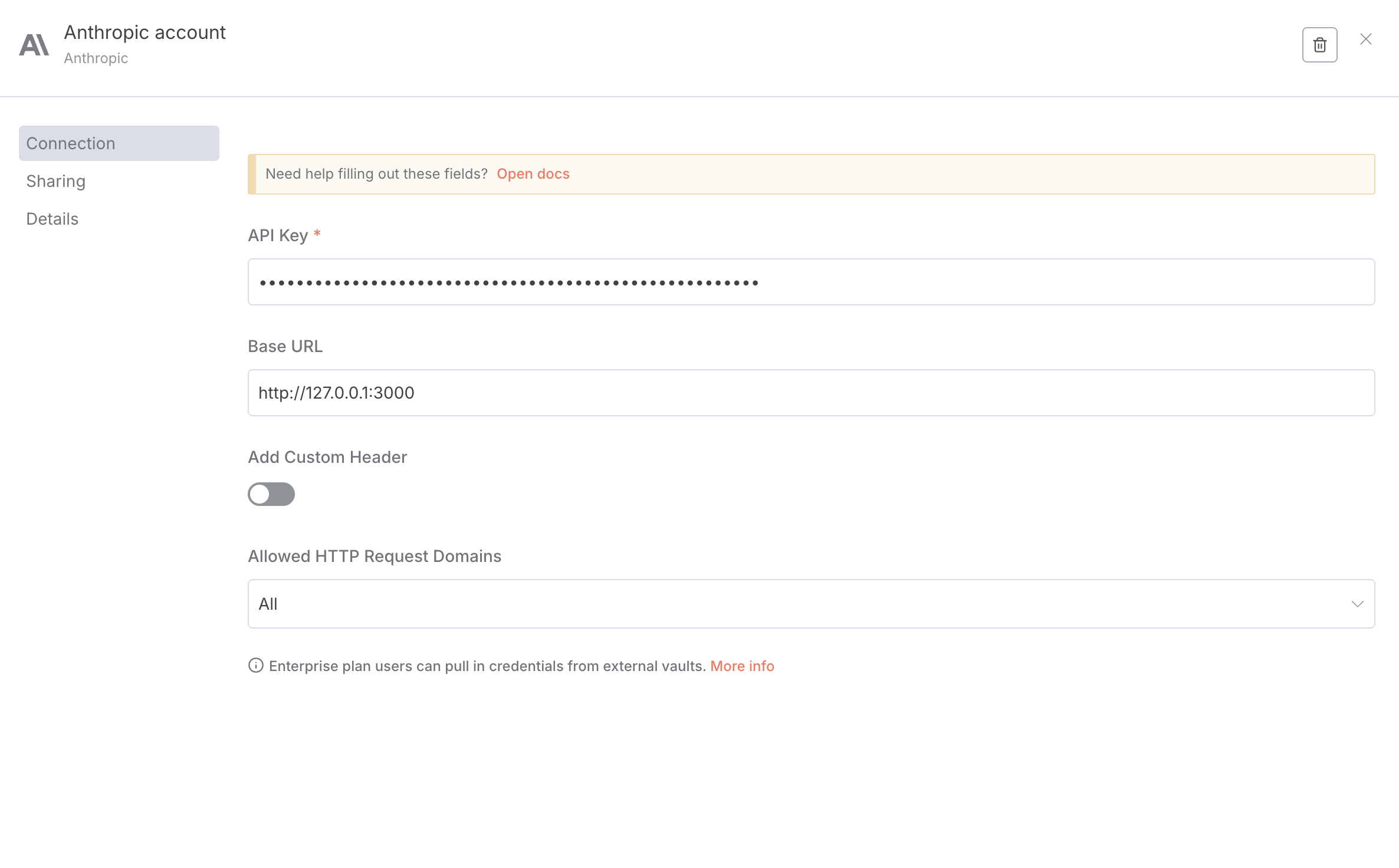
n8n Anthropic credential configuration with Agent Inspector proxy
When you see the success message, n8n is now routing through Agent Inspector. All subsequent LLM calls using this credential will be monitored and analyzed.
Option B: Using Agent Workflow IDs (Advanced)
To group sessions and link them to static analysis, include a workflow ID in the base URL:
http://127.0.0.1:4000/agent-workflow/{AGENT_WORKFLOW_ID}
Use the same agent_workflow_id when running static scans via MCP tools to correlate findings.
For complete header configuration options and examples, see the Cylestio Perimeter documentation.
Step 3: Run Your Workflow
Execute any n8n workflow that uses LLM nodes (Anthropic, OpenAI, or other providers configured through Agent Inspector). Here's an example workflow structure:
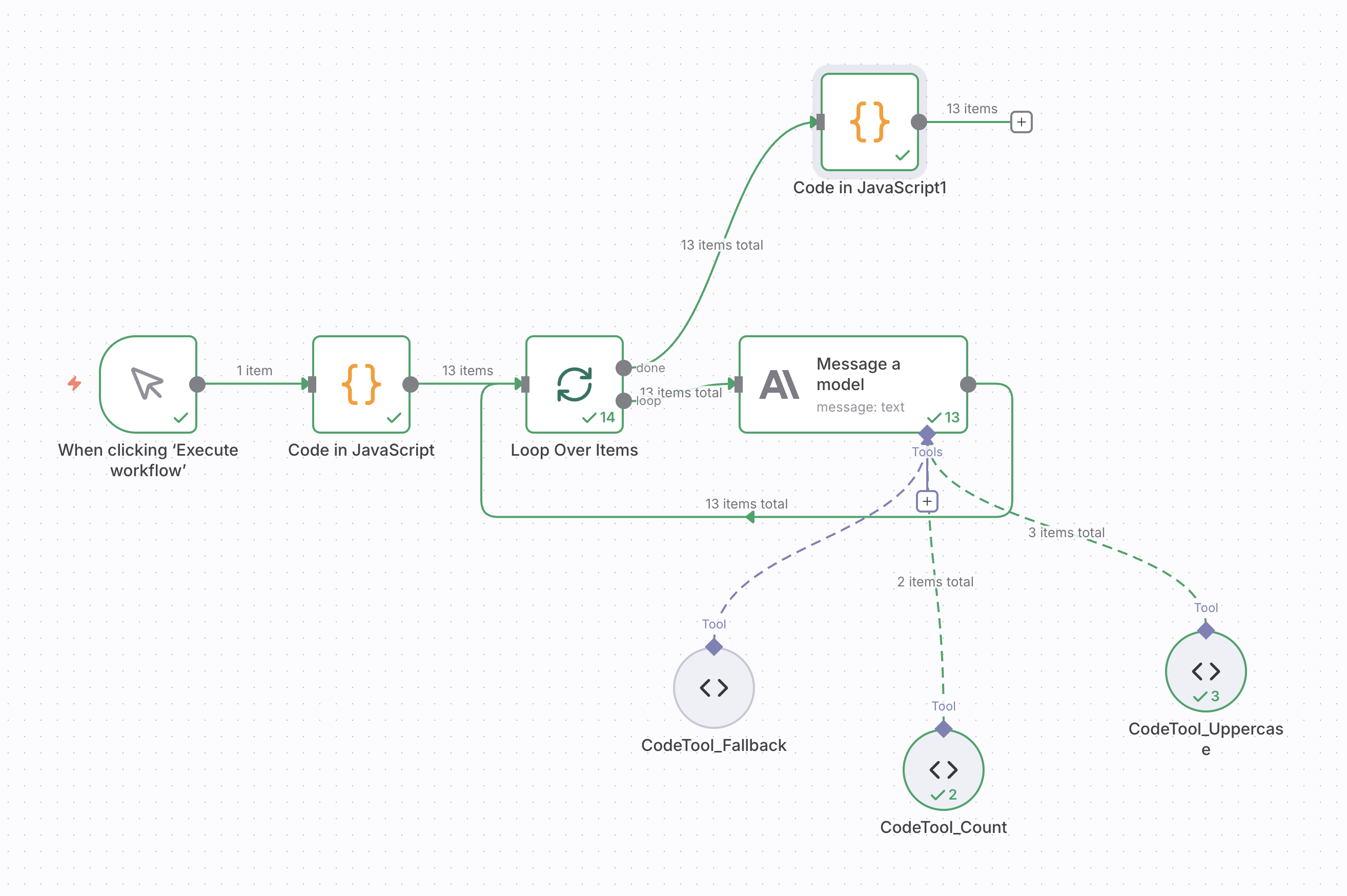
Example n8n workflow with Anthropic nodes and Code Tools
Agent Inspector stores data in memory only. Run your workflow 20-30 times while Agent Inspector is running. If you stop Agent Inspector, all captured sessions are cleared.
Step 4: View Analysis in Dashboard
Open http://localhost:7100 in your browser to see real-time analysis:
Sessions List
Every LLM call from n8n appears as a session. You can see status, duration, token usage, and tool calls:
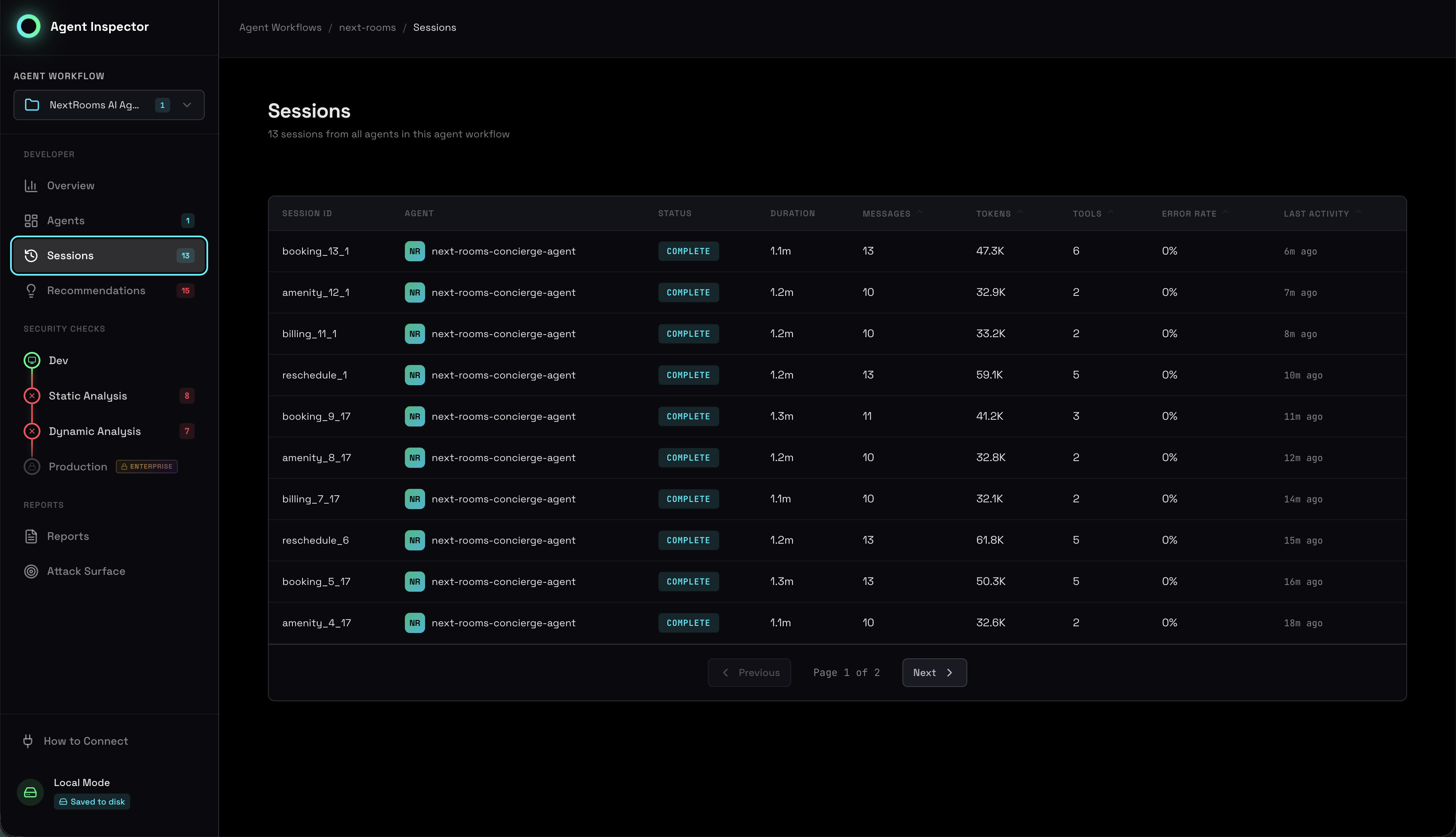
Sessions list showing all captured n8n LLM calls
Security and Behavioral Assessment
Get an at-a-glance view of your agent's security posture and behavioral patterns. This comprehensive assessment includes checks across resource management, behavioral stability, environment configuration, and privacy compliance:
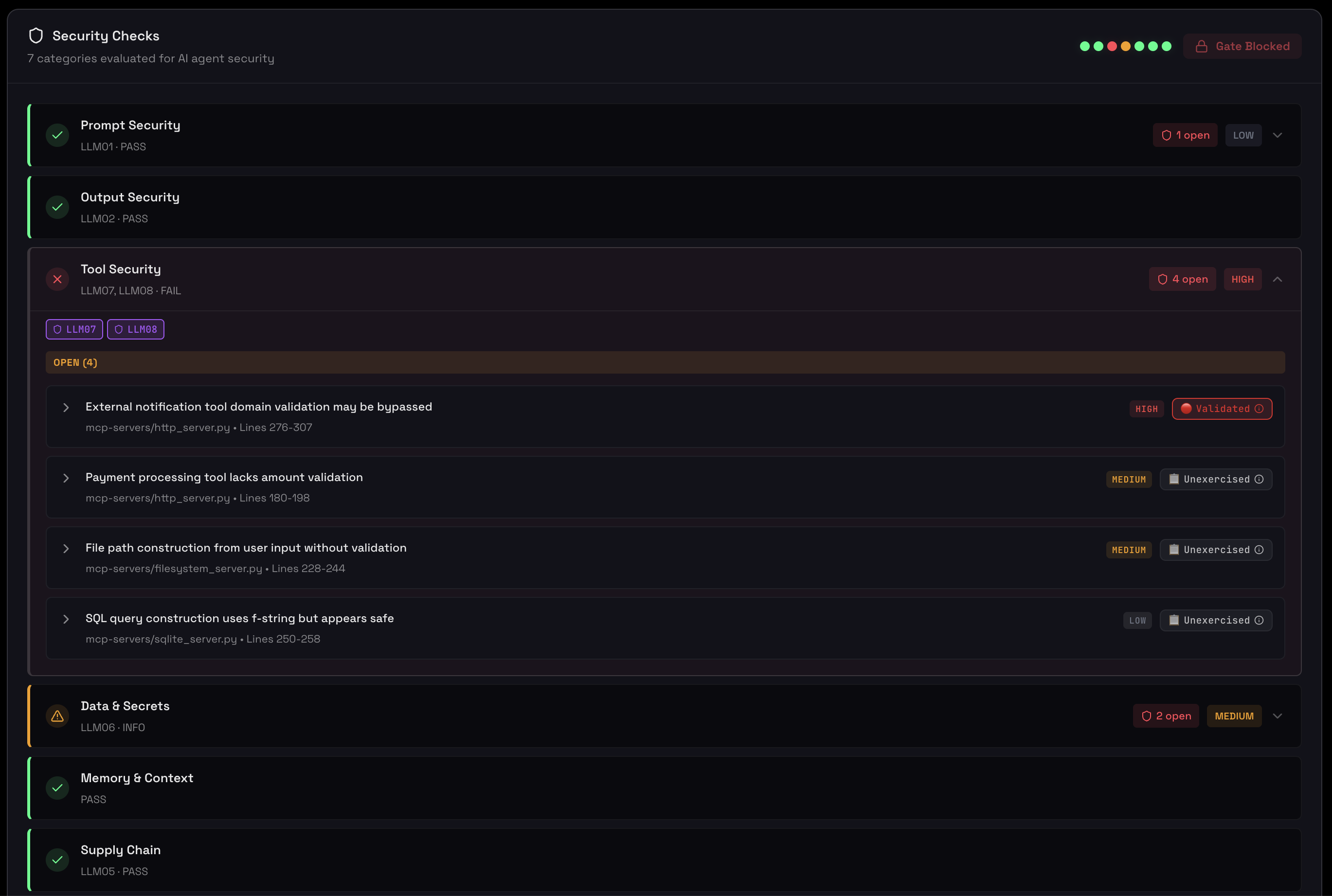
Security assessment showing critical checks, warnings, and behavioral metrics
Environment & Supply Chain
View which models are being used, whether they're pinned to specific versions, and tool usage coverage:
Model version tracking and tool adoption analysis
Privacy & PII Detection
Agent Inspector automatically scans for sensitive data in prompts and responses:
Privacy & PII Compliance report showing detection findings and exposure rates
Behavioral Analysis
After running multiple sessions, Agent Inspector automatically groups them into behavioral clusters and identifies outliers. This helps you understand operational patterns and spot anomalies:
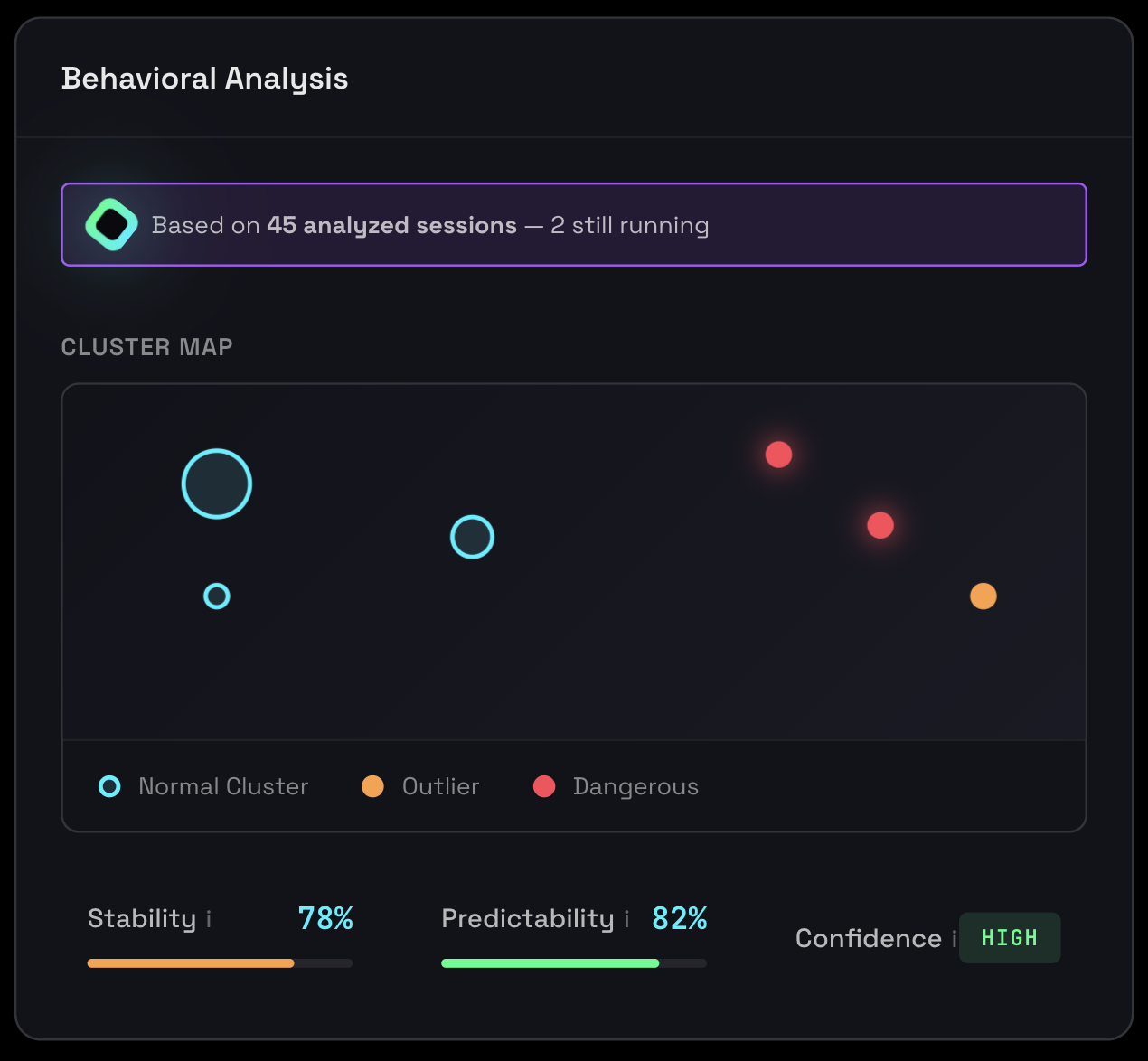
Behavioral clustering showing distinct patterns and outlier detection
What You Get
Real-Time Visibility
See every LLM call as it happens, with full prompt and response visibility
Behavioral Patterns
Automatic clustering of similar sessions to identify operational modes
Tool Usage Analysis
Track which n8n Code Tools are being called and which are unused
Security Insights
PII detection, resource bounds checking, and audit compliance
Cost Monitoring
Token usage tracking across all sessions
Production Readiness
Automated gates tell you if your workflow is ready to deploy
Common Use Cases
1. Debugging Tool Call Issues
When your LLM isn't calling n8n Code Tools as expected, Agent Inspector shows the exact tool schemas sent to the LLM and which tools were actually invoked.
2. Optimizing Token Usage
Track token consumption across workflow executions to identify prompts that need optimization or tool calls that are inefficient.
3. Testing Workflow Variations
Run the same workflow with different inputs and see how behavioral patterns change. Agent Inspector's clustering helps you understand consistency.
4. Pre-Production Security Review
Before deploying workflows to production, use Agent Inspector to generate security reports showing PII exposure, resource bounds, and audit compliance.